
With unlimited DVR, you can record all the shows and movies you want without worrying about space! Since all your recordings are saved remotely, there is no need for additional hardware.
DVR is available with our Classic and Premium plans. With Classic, recordings are saved for 3 months. With Premium, recordings are saved for 9 months
TABLE OF CONTENTS
How to Record
You can record programming from nearly every Frndly TV channel. Most channels also allow you to record programs that aired within the previous 72 hours.
Setting Recordings:
Movies:
- From the guide: Select "Record" then "Confirm" to record all airings
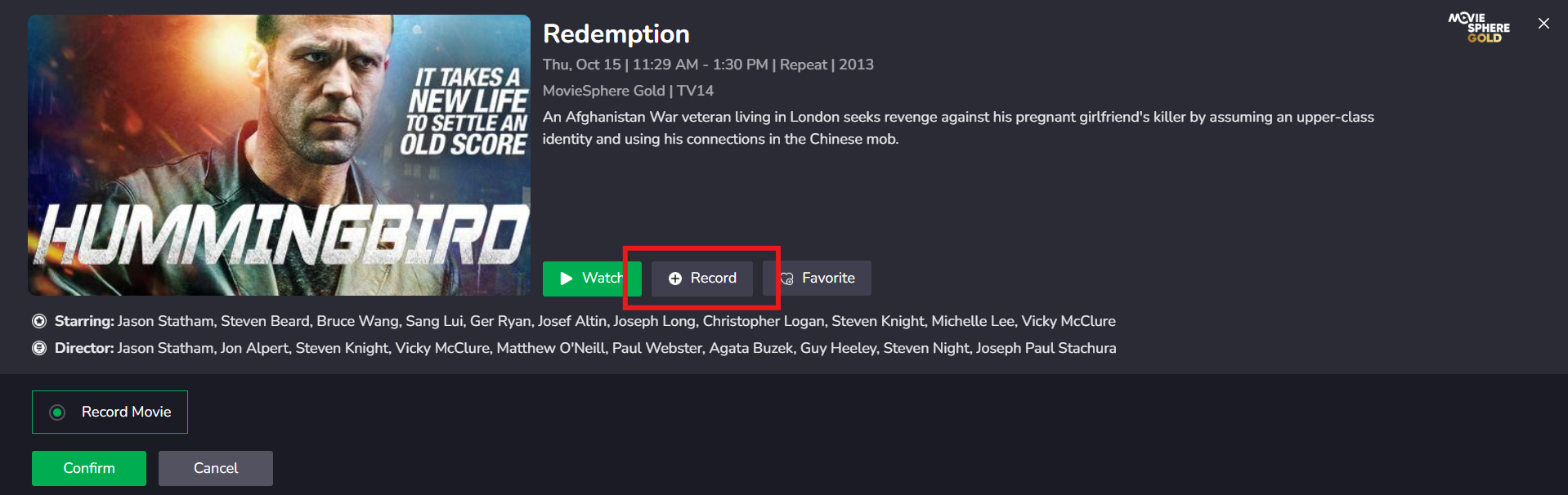
- From the Movie Page: Select "Record" to record all airings
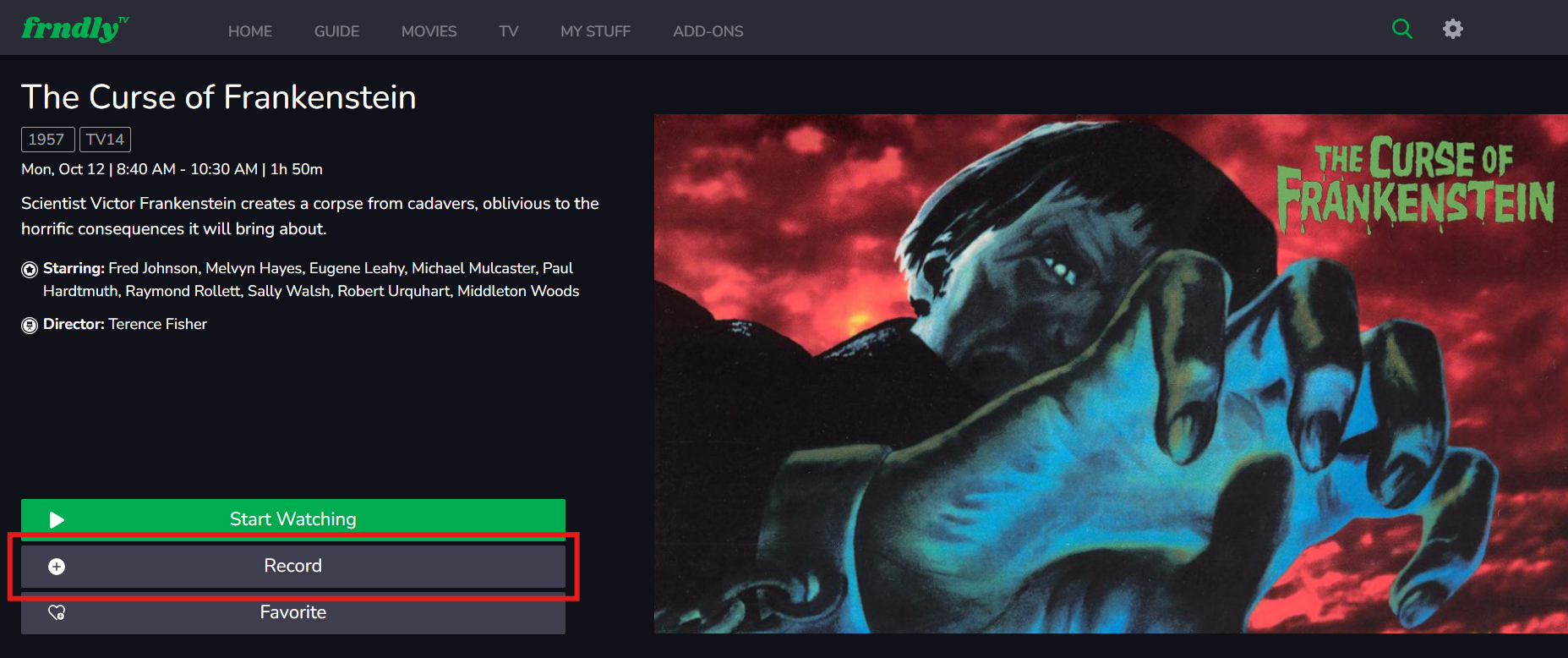
TV Shows:
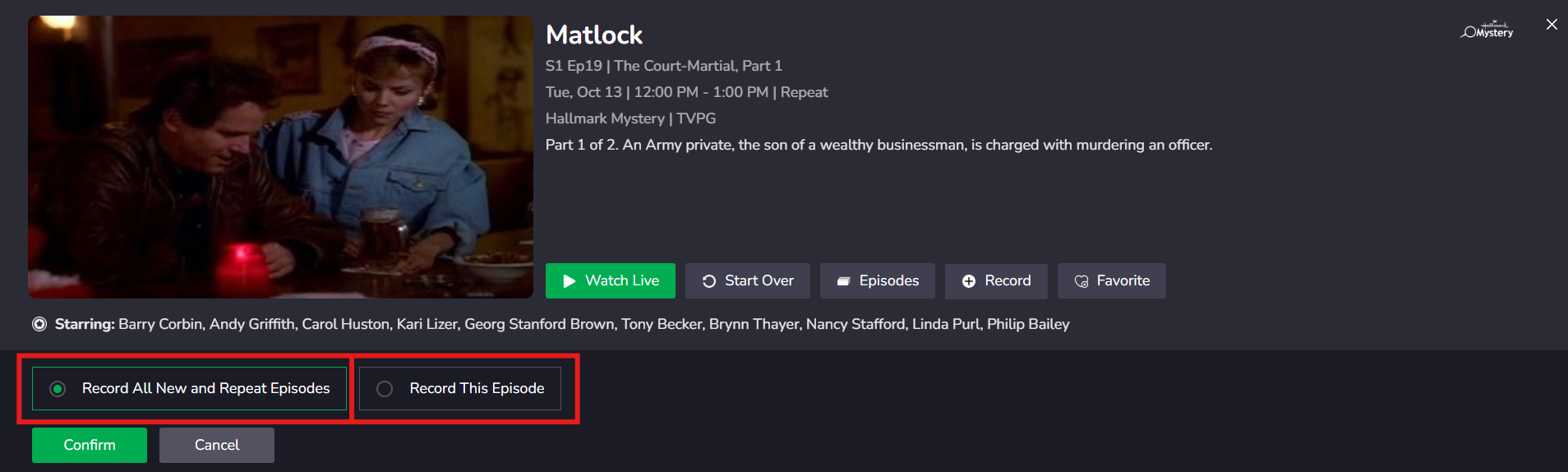
- From the Guide: Select "Record"
- Select "Record All New and Repeat Episodes" or "Record This Episode"
- Select "Confirm"
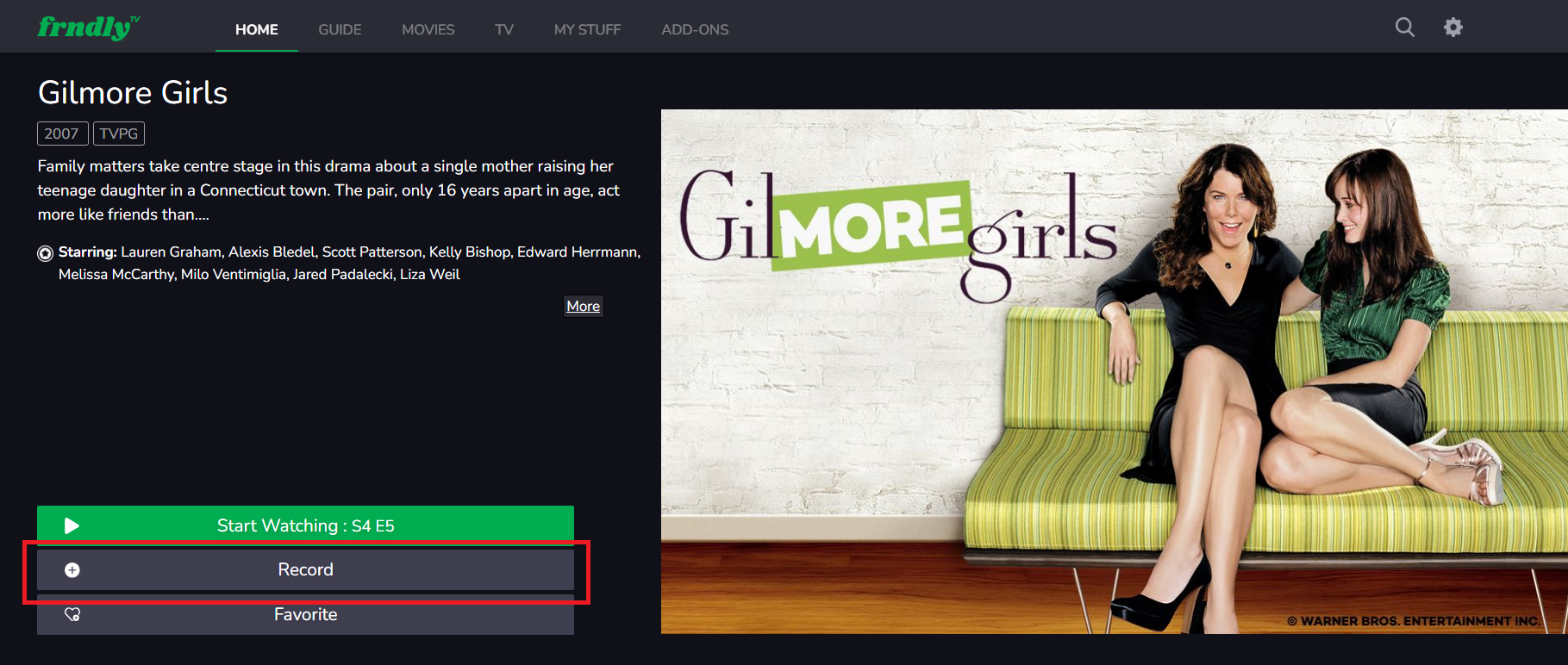
- From the TV Series Page: Select "Record" to record all airings
How to Find Recordings
All recordings can be found in the My Stuff section. You will find several lists with your recordings, including:
- Just Recorded
- Recorded Movies A-Z
- Recorded TV Shows A-Z
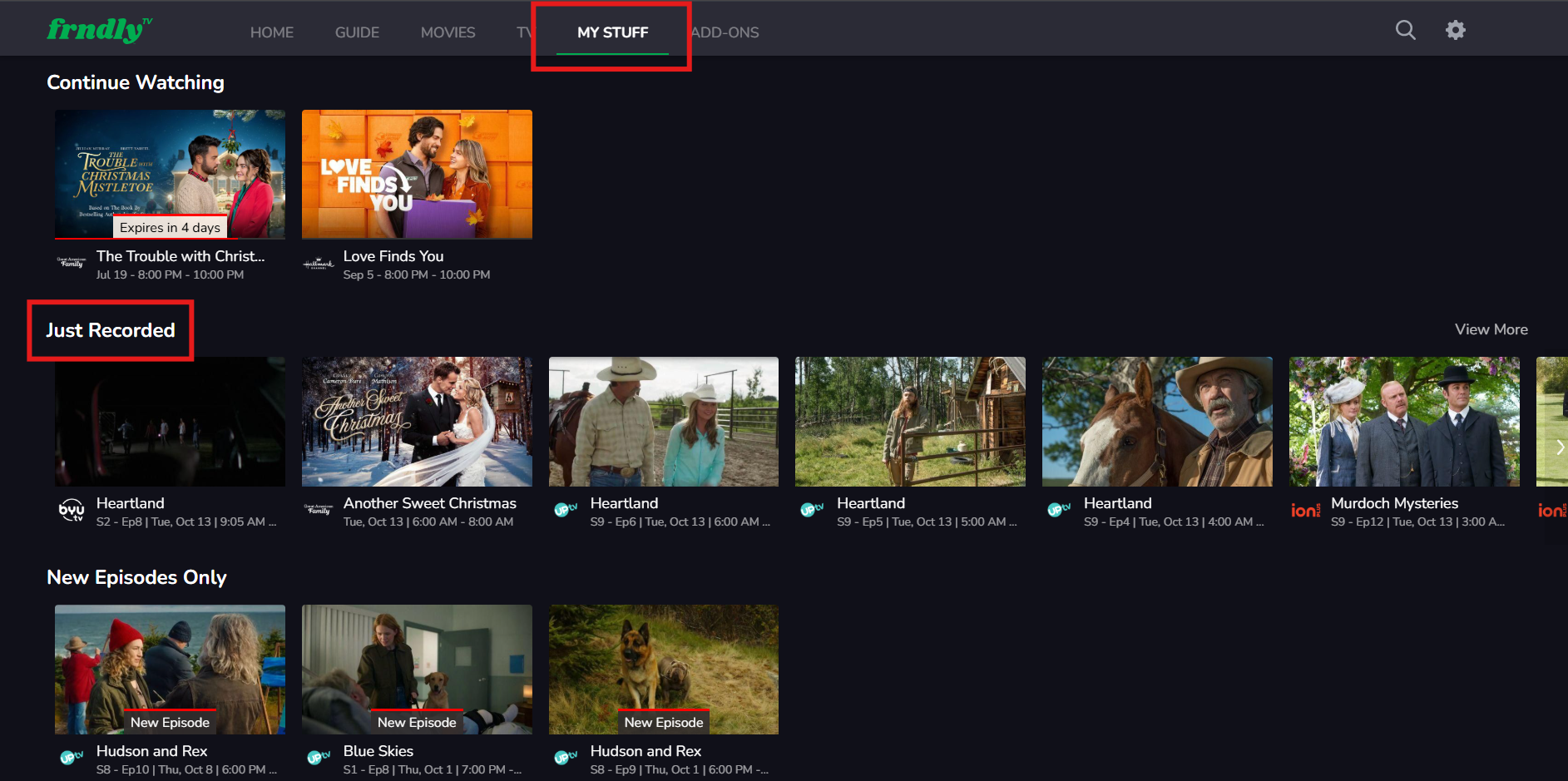
You can also search for a show or movie using the search bar in the top right corner of the Frndly TV app.
How to Cancel Recordings
Movies:
- From the Guide: Select "Stop Recording"
- Select "Stop Recording" and "Confirm" to stop recording the selected airing
- Select "Cancel Future Recordings" and "Confirm" to stop recording the selected airing and future airings
- Select "Delete All and Cancel Upcoming" and "Confirm" to stop recording the selected airing, future airings, and delete all recordings
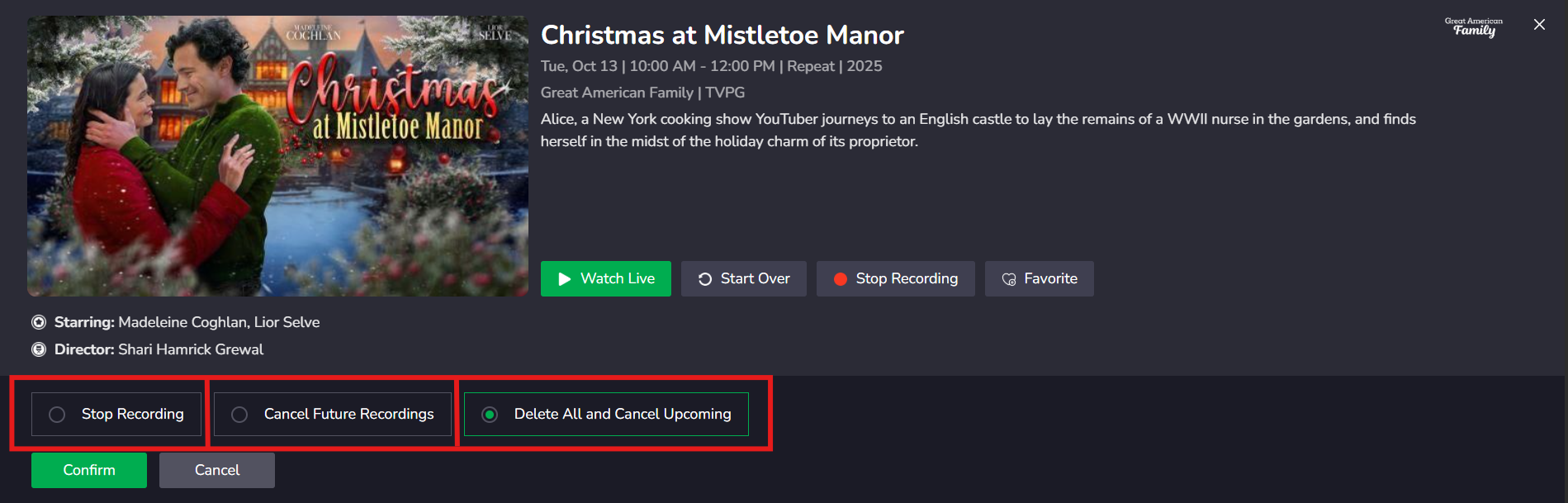
- From the "My Stuff" tab: Locate the "Just Recorded" row, select "View More," and select the Movie recording
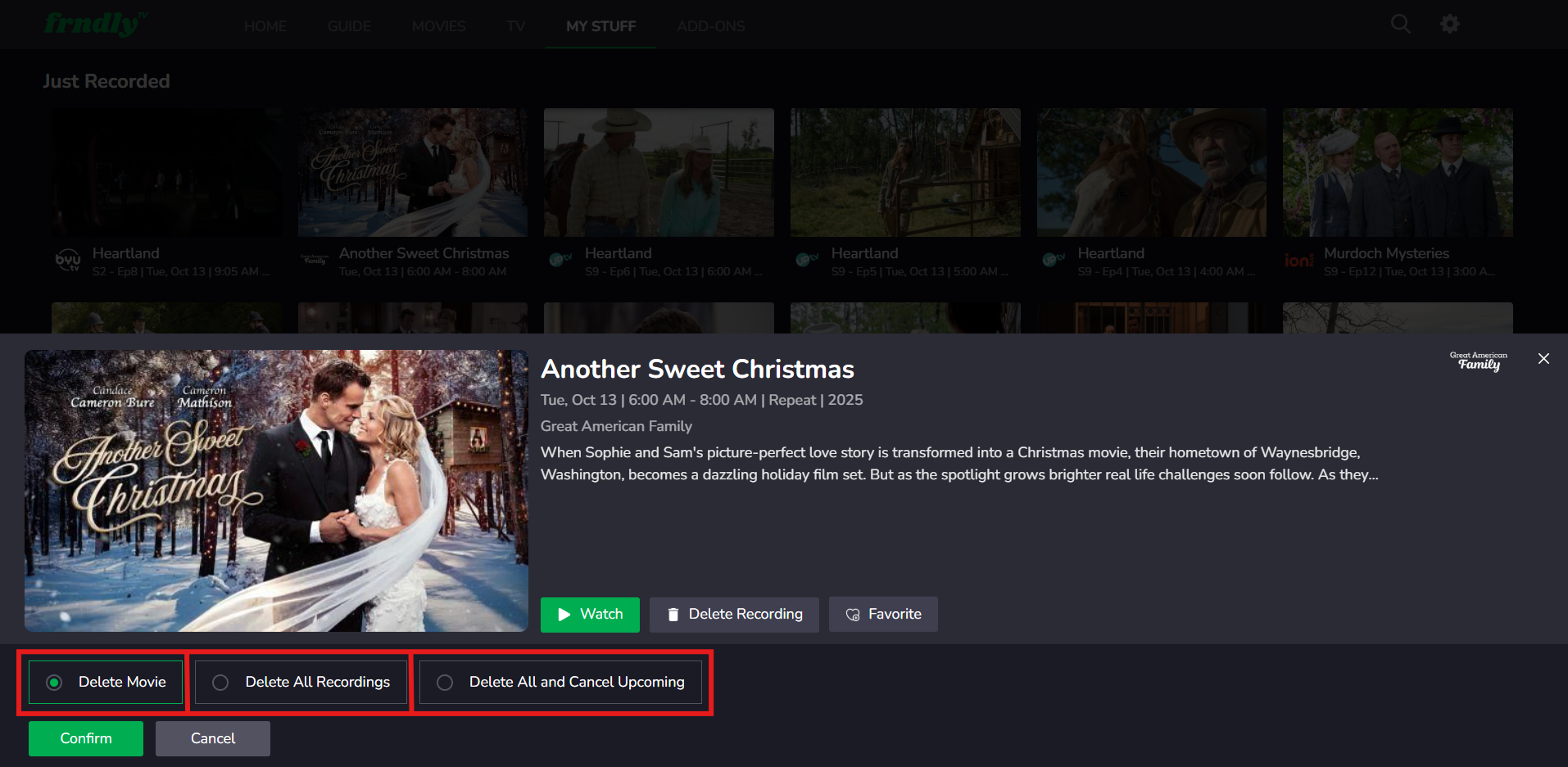
- Select "Delete Recording"
- Select "Delete Movie" and "Confirm" to delete the selected recording
- Select "Delete All Recordings" and "Confirm" to delete all recordings
- Select "Delete All and Cancel Upcoming" and "Confirm" to delete all recordings and stop future recordings
- Select "Delete Recording"
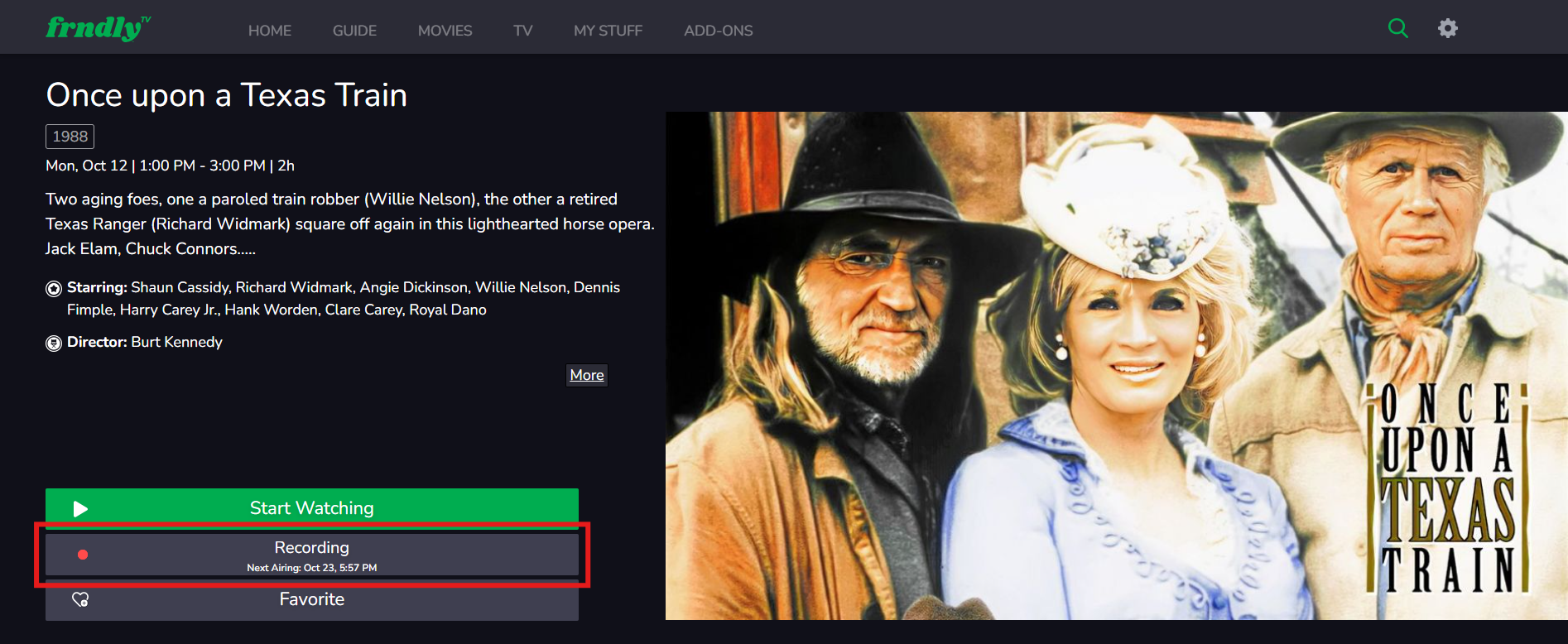
- From the Movie Page: Select "Recording All Airings" to stop recording active and future airings
TV Shows:
- From the Guide: Select "Stop Recording"
- Select "Stop Recording" and "Confirm" to stop recording the selected airing
- Select "Cancel Future Recordings" and "Confirm" to stop recording the selected airing and future airings
- Select "Delete All and Cancel Upcoming" and "Confirm" to stop recording the selected airing, future airings, and delete all recordings
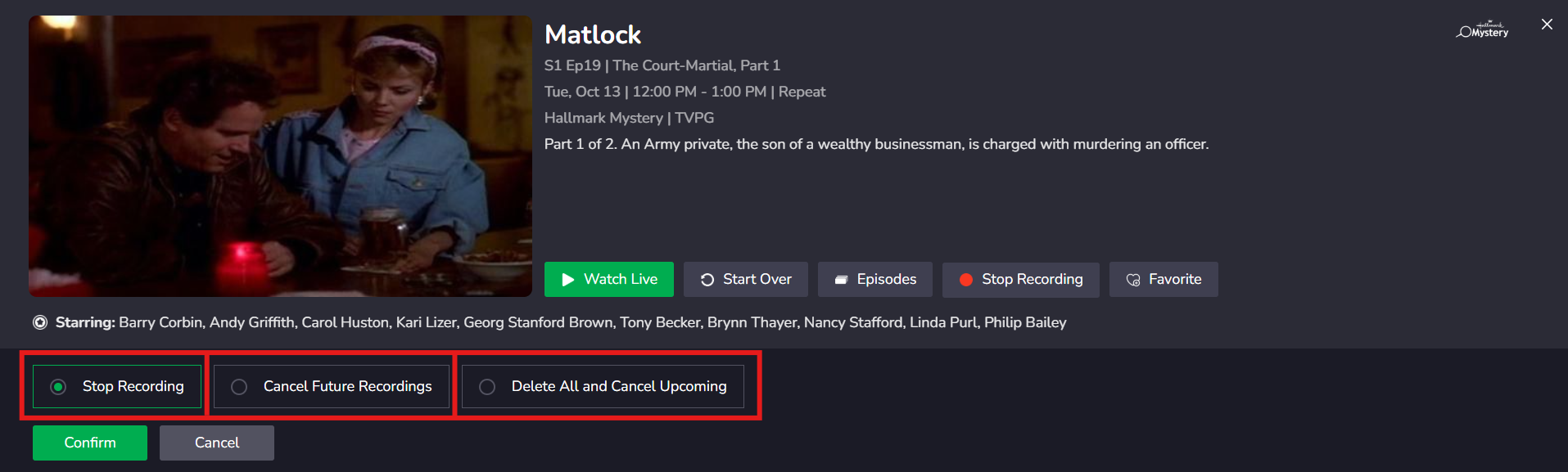
- From the "My Stuff" tab: Locate the "Just Recorded" row, select "View More," and select the Series recording
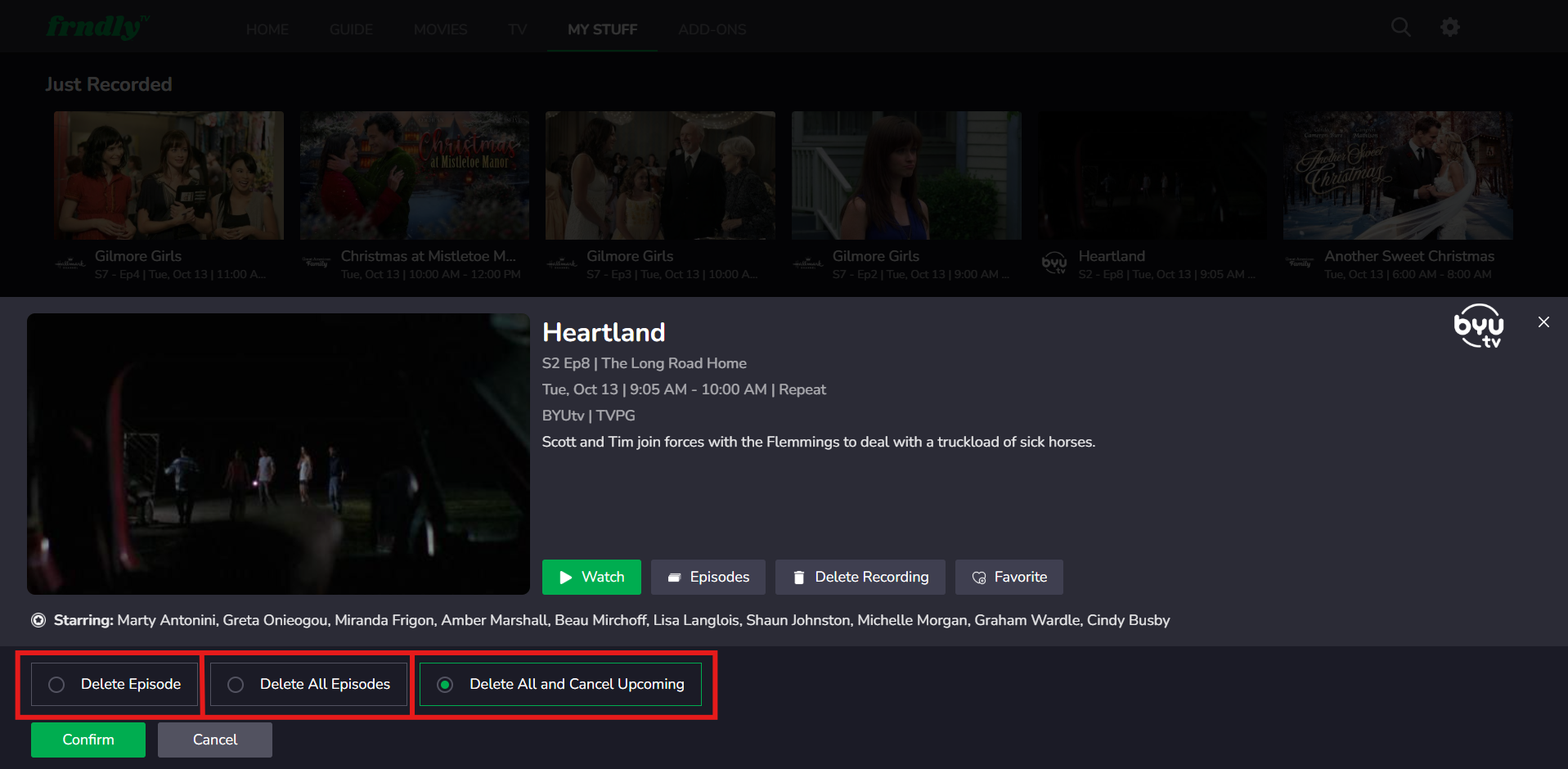
- Select "Delete Recording"
- Select "Delete Episode" and "Confirm" to delete the selected recording
- Select "Delete All Episodes" and "Confirm" to delete all episode recordings
- Select "Delete All and Cancel Upcoming" and "Confirm" to delete all episode recordings and stop future recordings
- Select "Delete Recording"
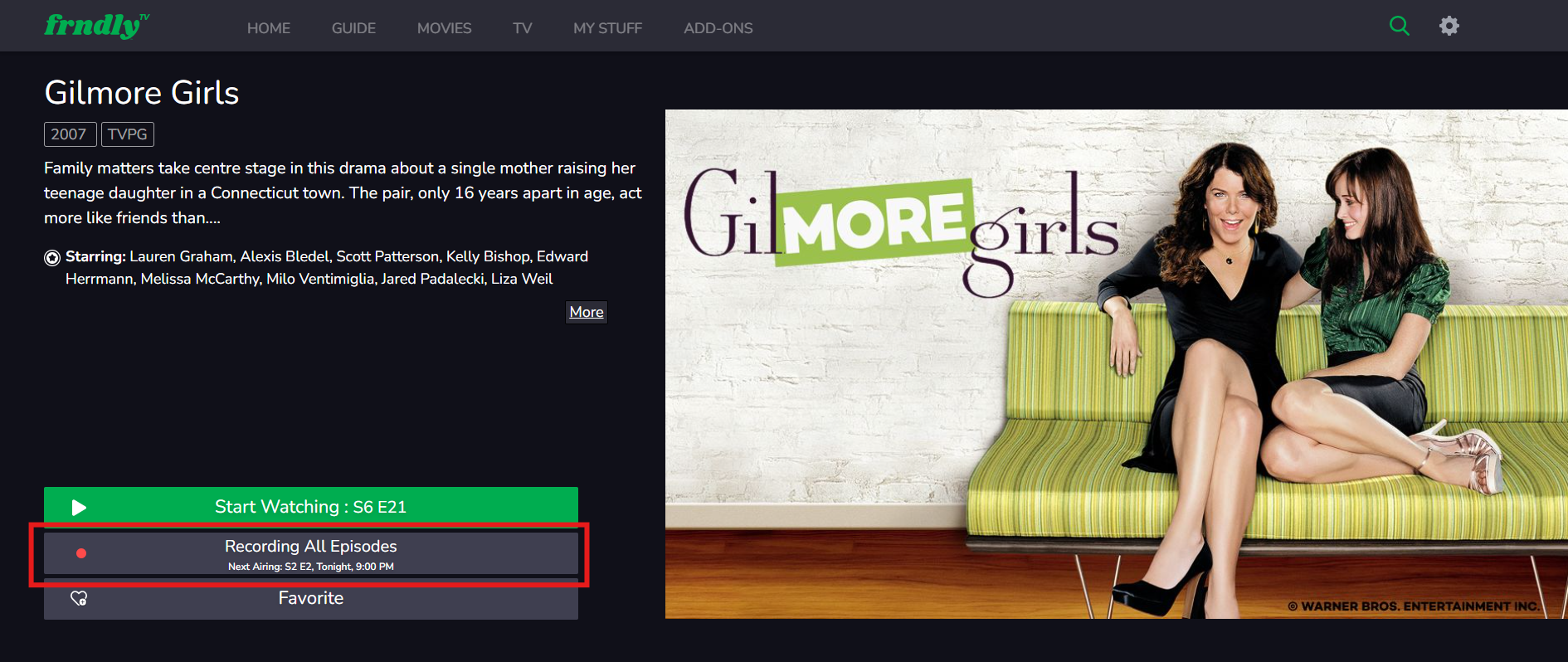
- From the TV Series Page: Select "Recording All Airings" to stop recording active and future airings
All steps listed above are the same across all TVs and Mobile devices.
How to Delete Recordings
To delete any recording:
1. From "My Stuff", locate the "Just Recorded" row
2. If you do not see the recording you are looking for, scroll right and select "View More"
3. Locate and select the recording you would like to delete
4. Click "Delete Recording":
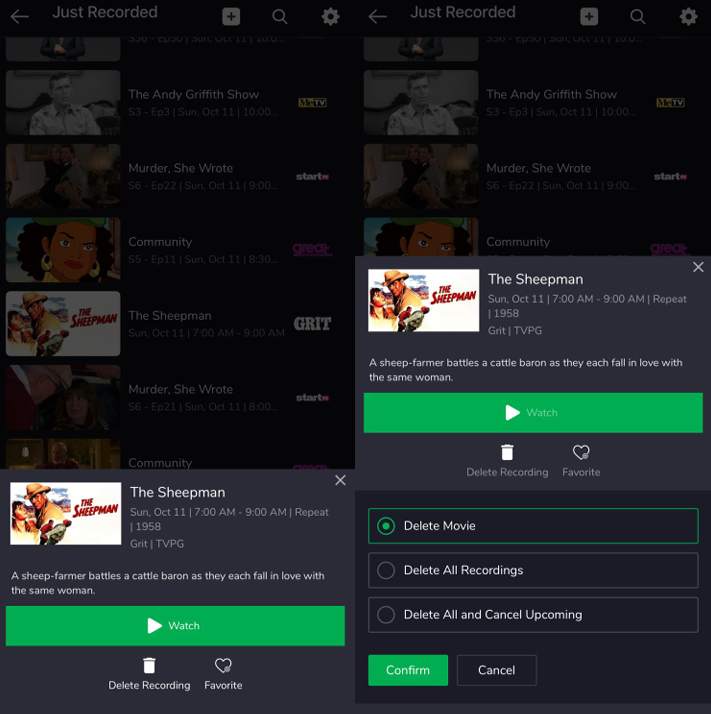
- For Movies:
- Select "Delete Recording"
- Select "Delete Movie" to delete the selected recording
- Select "Delete All Recordings" to delete all recordings
- Select "Delete All and Cancel Upcoming" to delete all recordings and stop future recordings
- Select "Delete Recording"
- For TV Series:
- Select "Delete Recording"
- Select "Delete Episode" to delete the selected recording
- Select "Delete All Episodes" to delete all episode recordings
- Select "Delete All and Cancel Upcoming" to delete all episode recordings and stop future recordings
- Select "Delete Recording"
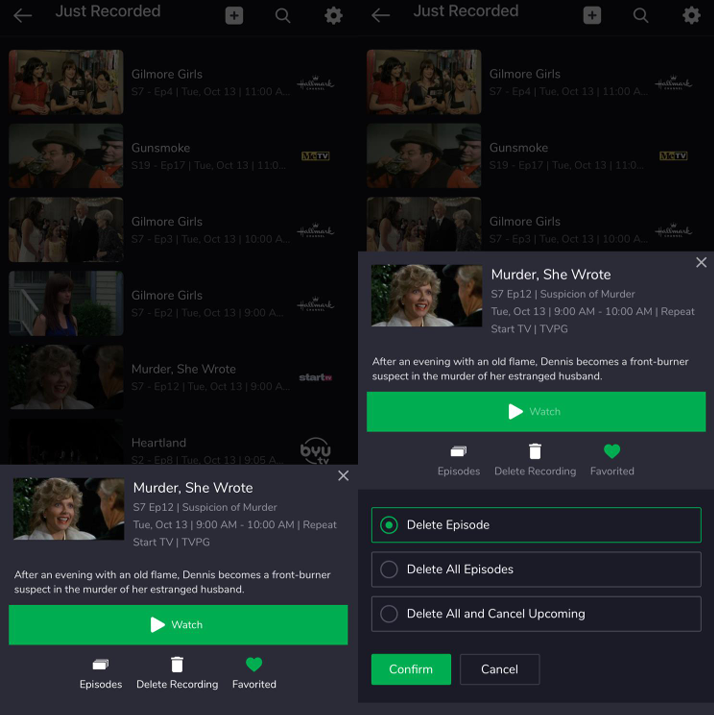
3. Click "Confirm"
To delete all recordings of an individual episode of a TV Series:
1. Navigate to the TV Series Page
2. Locate "Just Recorded" below "More Episodes"
3. Select the trash can icon to delete all recordings of the individual episode
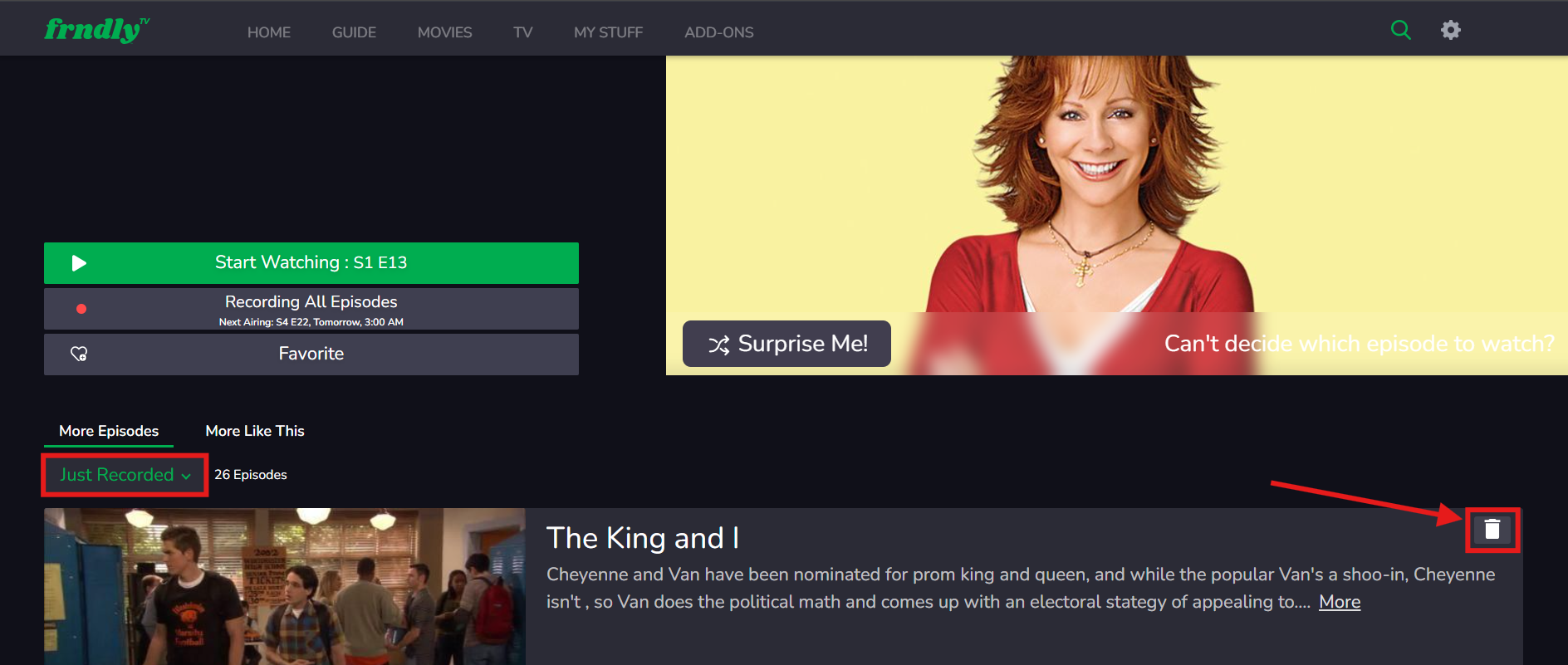
4. Select "Delete Recording"
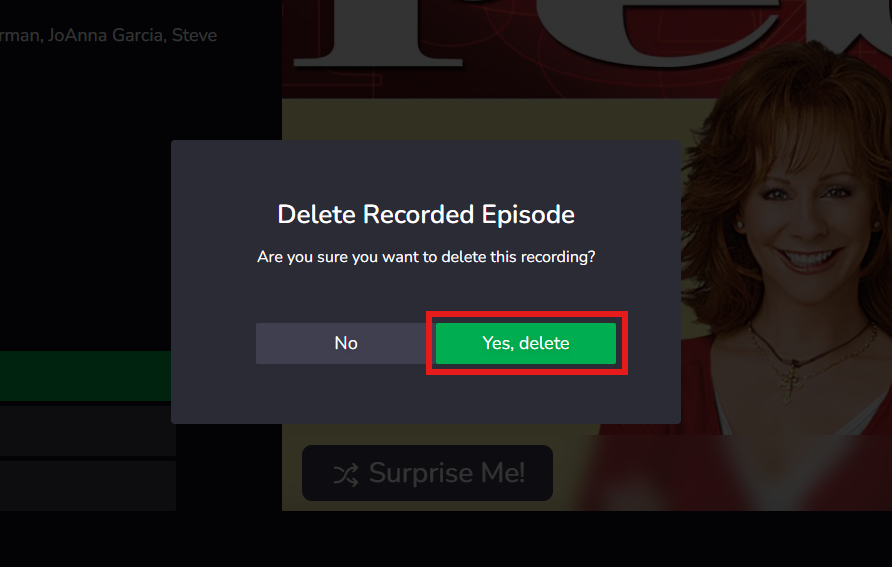
4. To confirm the recorded episode has been deleted, a confirmation message Removed from My Stuff will appear
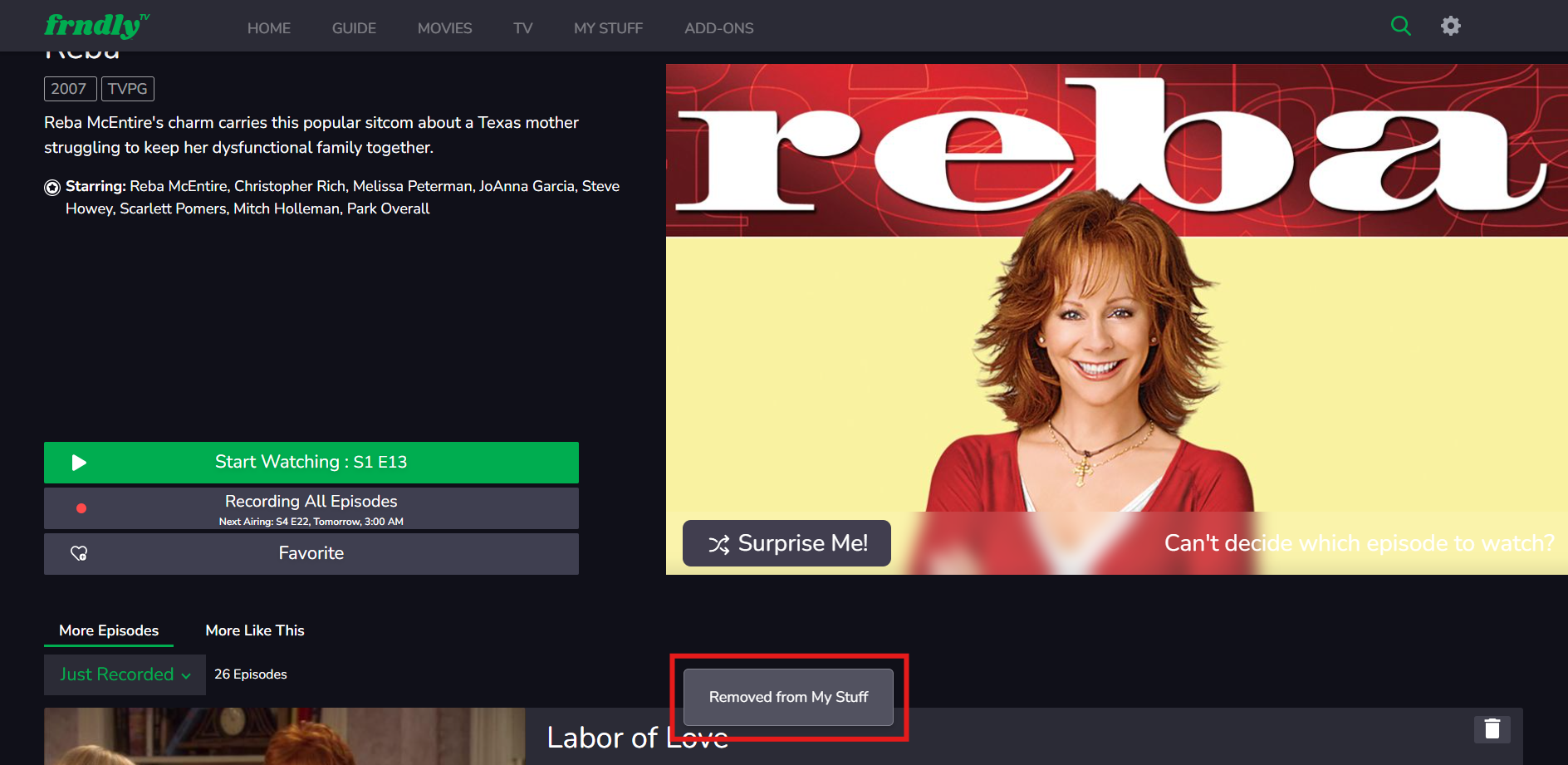
You are also able to delete recordings from the "Continue Watching" row, if visible within the "My Stuff" or "Home" tab.
If you do not have our Classic or Premium plan and would like to upgrade, you can go to FrndlyTV.com to learn how to upgrade your subscription!
If you want to talk with us, you can start a chat by clicking the chat icon at the bottom right-hand corner of the page or email us at support@frndlytv.com.