
If you don't have a smart TV that can directly access the Frndly TV app, you can still watch by casting or using Airplay from another device, such as a phone, tablet, or laptop.
How to Airplay
Airplay is only available on iOS (iPhones and iPads) and is the preferred method for these devices.
1. Ensure your iOS device and Smart TV are connected to the same Wi-Fi network
2. Download the Frndly TV app on your iOS device, and sign in to your account
3. Start playing the show or movie you want to watch
4. Once you have something playing, tap your screen to activate the on-screen icons
5. Tap the Airplay icon (pictured below)
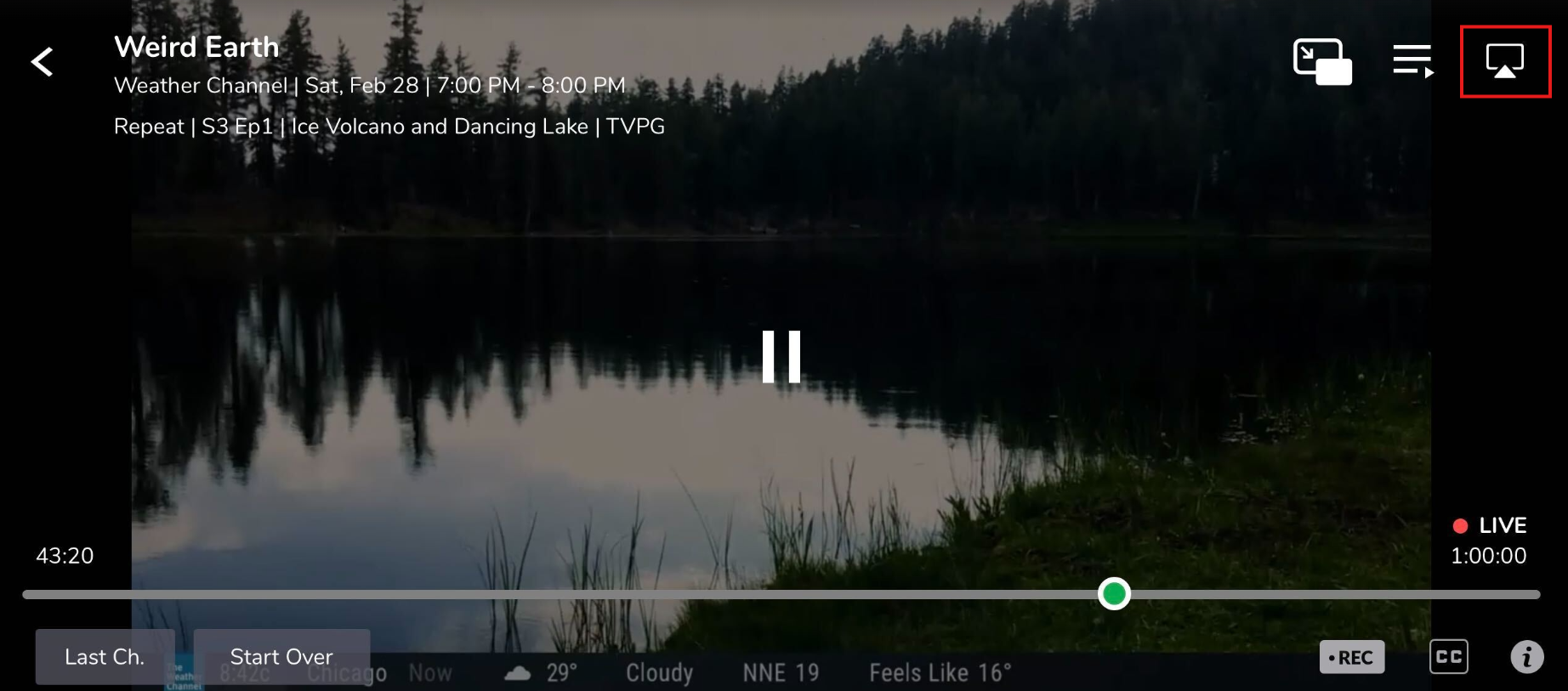
6. On the list of devices connected to your network, select your TV
How to cast (from a mobile device)
- Ensure your mobile device and Smart TV are connected to the same Wi-Fi network
- Download the Frndly TV app on your mobile device, and sign in to your account
- Click the Cast icon in the top-right corner of the app (pictured below)
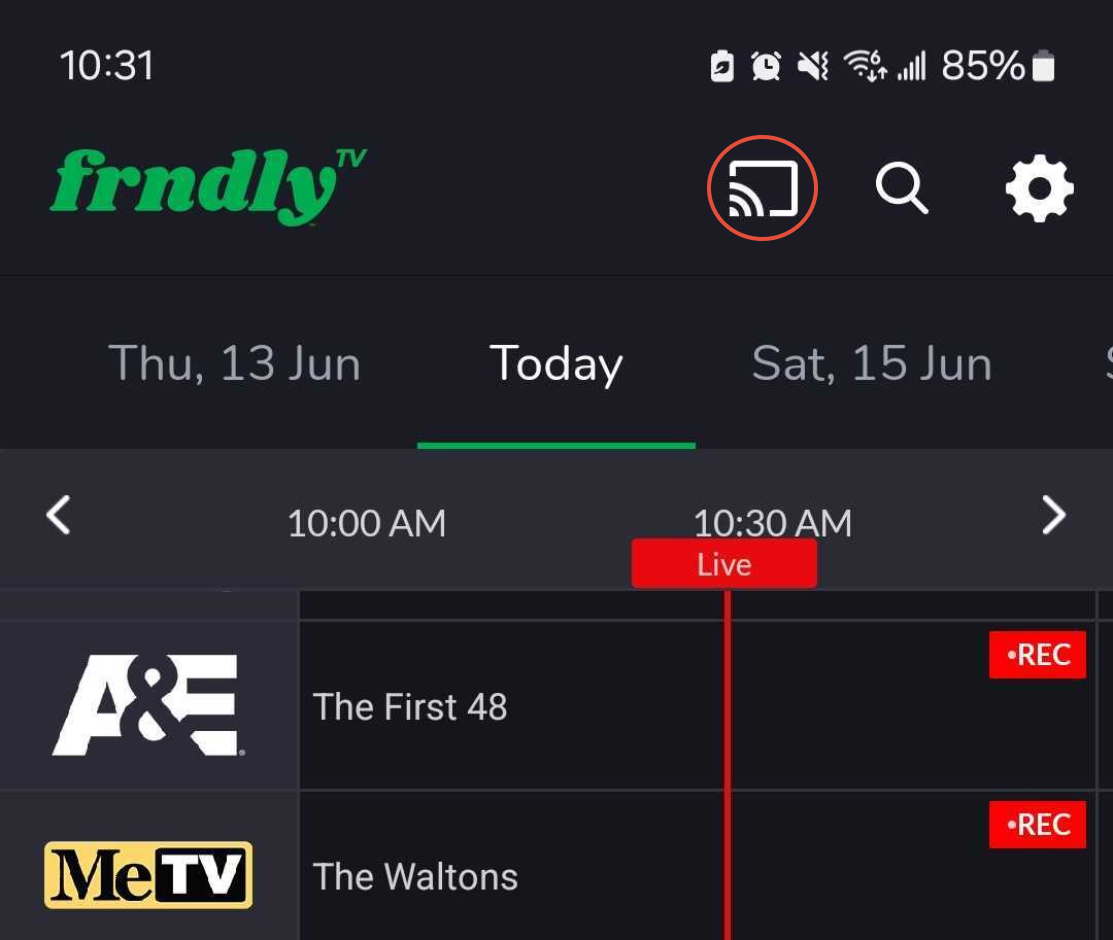
4. On the list of devices connected to your network, select your TV
How to Cast (from Google Chrome on a laptop/computer)
1. Ensure your computer and Smart TV are connected to the same Wi-Fi network
2. On a Google Chrome browser, sign in to your account on FrndlyTV.com
3. In the top-right corner of your browser, click the Menu Icon, then click Cast
4. On the list of devices connected to your network, select your TV
5. From your computer, select what you want to watch

.
If you want to talk with us, you can start a chat by clicking the chat icon at the bottom right-hand corner of the page or email us at support@frndlytv.com.